5 Best Tools to Get a Free Passport Photo Online in 2026
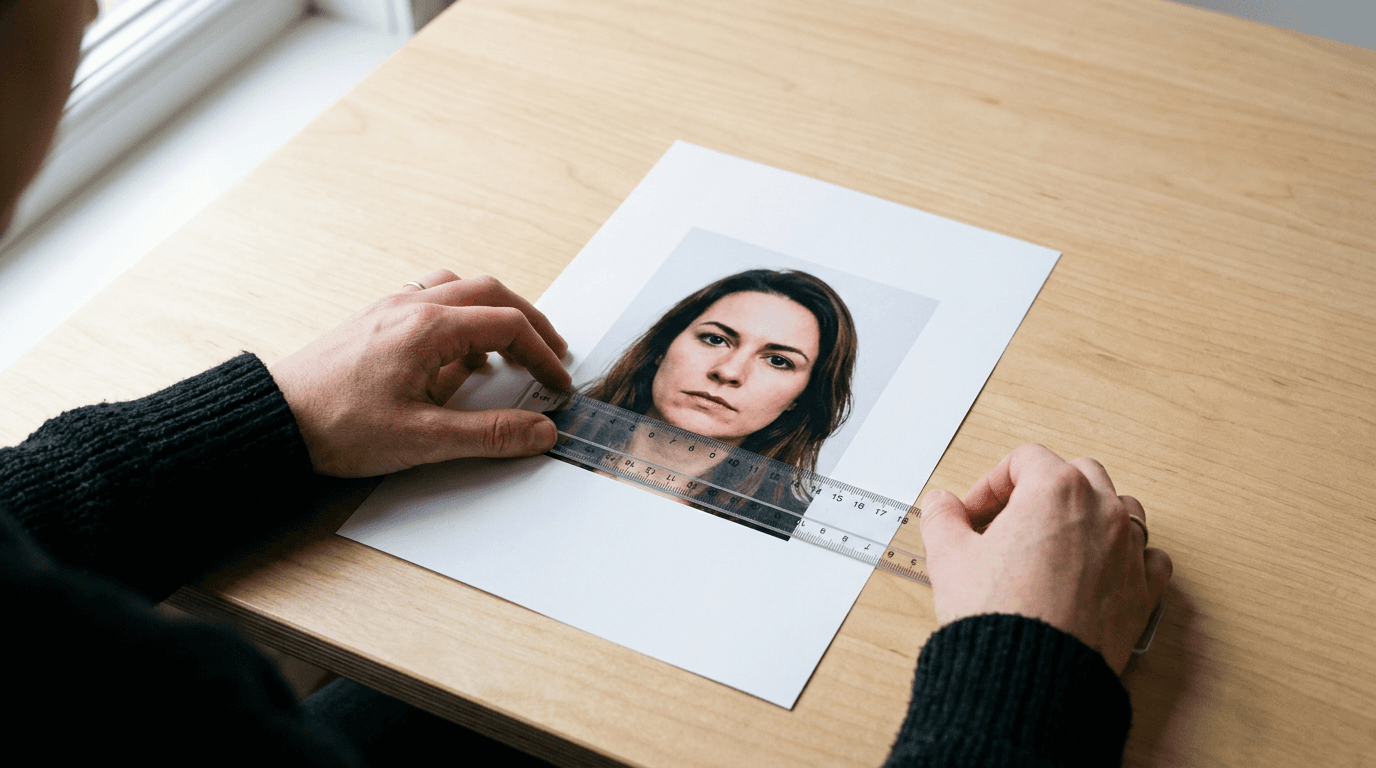
Most applicants assume that generating a free passport photo online requires finding software that magically removes shadows, corrects posture, and replaces cluttered backgrounds. In reality, a free tool expects you to bring a near-perfect raw image; its primary job is to scale your head so the chin to crown measures exactly between 25 and 35 millimeters. Relying on basic utilities to fix poor lighting or a textured wall is the most common reason government agencies reject applications. Getting your documentation ready without studio fees means trading a photographer's expertise for strict personal responsibility over lighting, camera distance, and alignment. This review examines five distinct platforms that prepare your smartphone capture for official submission without requiring professional studio equipment or paid subscriptions.
Quick Summary
Generating a passport photo online free of charge requires utilizing software that crops, scales, and aligns an uploaded digital image to strict government biometric specifications. The most effective free utilities bridge the gap between a casual smartphone photograph and a print-ready sheet formatted for retail photo centers.
- Tool selection dictates whether biometric cropping is a manual task or algorithmically determined.
- Free basic utilities rarely alter initial lighting conditions or remove non-compliant backgrounds.
- Generating a print-ready export does not automatically guarantee biometric compliance.
- Government-provided tools set the definitive baseline for dimensional accuracy.
Table of Contents
- How to Choose a Photo Processing Tool
- 1. U.S. Department of State Photo Tool
- 2. idphoto4you
- 3. 123PassportPhoto
- 4. PhotoGov
- 5. MyPassportPic
- Matching the Tool to Your Situation
- Recommended Reads
Comparison Table
| Product | Processing Approach | Features | Pros | Cons | Target Audience |
|---|---|---|---|---|---|
| U.S. Department of State Photo Tool | Government-Provided Utility | Manual alignment grid, 600x600 px export | Official geometry, strict U.S. focus, browser-based | No background removal, paper-only focus, lacks print grid | Applicants with perfectly lit raw photos |
| idphoto4you | Manual Crop Tools | Multi-country presets, manual drag-to-fit | Handles international formats, transparent process, free output | High risk of user error, tedious manipulation, slow workflow | Applicants needing foreign visa sizes |
| 123PassportPhoto | Automated Formatting Software | Facial landmark detection, automatic cropping | Speeds up workflow, eliminates manual dragging, consistent scaling | Fails on heavy shadows, struggles with tilted heads, rigid rules | Users avoiding manual grid templates |
| PhotoGov | Automated Formatting Software | Translates selfies to official limits | Bypasses desktop software, standardizes mobile capture, fast | Strictly American formats, ignores international rules, requires good lighting | Casual mobile users needing U.S. formats |
| MyPassportPic | Manual Crop Tools | 4x6 print sheet generation | Prepares files for retail kiosks, simple interface, direct output | Does not check biometric compliance, basic interface, manual oversight needed | Users ready for physical retail printing |
How to Choose a Photo Processing Tool
Evaluating a passport size photo free generator requires understanding exactly what happens to your uploaded file. Tools in this space do not typically perform complex graphical edits; they perform dimensional math. To evaluate these platforms effectively, you must understand the lens of the Processing Approach. This axis separates tools based on how they calculate and enforce biometric geometry, dividing the market into three distinct categories.
Government-Provided Utility platforms are hosted by the issuing authorities themselves. They offer absolute dimensional certainty because the same organization writing the rules provides the crop template. However, they are highly specialized, usually supporting only one country's format, and offer zero corrective features for bad lighting or poor contrast.
Automated Formatting Software relies on algorithms to detect facial landmarks. When you upload a file, the software scans for the distance between the eyes, the bottom of the chin, and the top of the head. It then automatically scales the image to ensure the head size falls within the mandated percentages of the total image height. This approach is fast but brittle; if a subject has closed eyes or a tilted head, the algorithm often fails to draw the bounding box correctly.
Manual Crop Tools force the user to do the work. The platform overlays a wireframe or a set of guidelines over your image, and you must manually drag, zoom, and rotate the file until the subject's face aligns with the markers. This category offers maximum control, which is necessary when algorithms fail on difficult subjects, but it introduces a high risk of user error. If you misjudge the crown of the head by a few millimeters, the final print will be rejected.
Practical rule: A digital crop tool cannot fix the physical barrel distortion caused by holding a smartphone too close to your face. Stand at least four feet away and use the camera's zoom function to flatten the facial features before applying any online templates.
Understanding these categories helps you anticipate where the process will break down. If you are dealing with rigid international requirements, verifying the exact millimeter ratios against a reliable source like a United States Baby Passport Photo Guide before cropping will save you a rejected application.
1. U.S. Department of State Photo Tool
The U.S. Department of State provides an online utility designed specifically to crop and size images for paper-based U.S. passport applications. Rather than relying on third-party interpretations of the rules, this tool offers the exact dimensional overlay the government expects. You upload a JPEG file directly into the browser, and the interface presents a set of green dashed lines. You then use a simple slider to scale the image until the chin and the crown of the head fit perfectly between these lines.

Operating strictly as a Government-Provided Utility, this platform bypasses commercial algorithms entirely. It outputs a square image precisely 600 by 600 pixels in size. Because it does not apply compression or run heavy background removal scripts, the final file retains the exact pixel quality of your original upload, ensuring no degradation occurs during the crop.
Official status guarantees baseline dimension compliance
What would make me hesitate to recommend this tool is its complete lack of preparation for retail printing. It exports a single 2x2 square. If you take that single square to a local pharmacy kiosk, the machine will often stretch it across a standard 4x6 sheet, destroying the biometric scale entirely. Furthermore, it offers zero background removal; if your wall is off-white or heavily shadowed, the tool will crop it perfectly and the government will still reject it. Skip this utility if you do not know how to assemble a 4x6 print layout yourself.
Opt for this tool when you have a perfectly lit, white-background photograph, possess the skills to arrange it for printing, and need absolute official dimensional alignment.
Pros
- Guaranteed dimensional compliance for U.S. standards.
- Preserves the original image resolution without heavy compression.
- Interface is entirely free of advertisements or commercial tracking.
Cons
- Does not generate a 4x6 print-ready layout.
- Lacks background detection or shadow correction.
- Restricted exclusively to United States documentation formats.
2. idphoto4you
An expatriate parent trying to format a digital image for a foreign visa often encounters differing millimeter requirements that standard American utilities ignore entirely. idphoto4you operates as an online utility that allows users to crop and adjust photos to meet passport, visa, and ID standards for multiple countries. Instead of guessing the biometric ratios for European or Asian documentation, users select their target country from a drop-down menu and the platform loads the corresponding dimensional template.
Falling into the Manual Crop Tools category, this platform does not make decisions for you. Once the file is uploaded, the browser interface overlays a specific grid mapping the required eye line and head boundaries. The user manually drags, scales, and positions the uploaded file beneath this transparent template. Once aligned, the software compiles the final image into a multi-photo grid designed for standard print sizes.
Multi-country presets streamline international documentation
I would hold off on this option if dealing with a squirming subject whose posture is not perfectly straight. Because the adjustments are entirely manual, user error dictates the outcome. Misjudging the exact top of the head - a common issue with thick hair - means you will export a technically flawed document. When working against strict Canada Baby Passport Photo Guide metrics, a manual slip of the mouse easily leads to an application rejection.
Choose this utility when applying for specific foreign documentation and you possess the patience to manually align facial markers against a rigid template.
Pros
- Supports a vast array of international document formats.
- Generates a ready-to-print compilation sheet automatically.
- Does not require a user account to process downloads.
Cons
- Manual alignment process is highly susceptible to user error.
- Interface design feels dated and occasionally clunky.
- Offers no automated warnings for poor initial lighting.
3. 123PassportPhoto
Unlike manual processors that force you to drag a grid over your face meticulously, this platform attempts to handle the alignment geometry automatically. 123PassportPhoto is an online service that formats photos to meet passport requirements through automatic face detection and cropping. It is built for users who have a solid raw file but do not want the burden of calculating millimeter ratios or checking eye lines manually.
As an Automated Formatting Software solution, the tool is built around minimizing user interaction. When a file hits the server, the algorithm scans for distinct facial landmarks: the bridge of the nose, the center of the eyes, and the corners of the mouth. Using these data points, it mathematically establishes the center of the face and calculates the bounding box required to meet the uploaded file's target dimensions. The system then crops the image instantly, bypassing the need for transparent overlays entirely.
Automatic face detection reduces manual manipulation errors
Where this platform shows its limits is in its rigid algorithmic dependency. The face detection fails predictably when presented with heavy shadows across the jawline or a subject whose head is tilted slightly off-axis. If the software cannot find the eyes clearly - a frequent issue covered extensively in the United Kingdom Baby Passport Photo Guide - it will either refuse to crop or generate a drastically off-center image. Users with poorly lit initial uploads will find this automation more frustrating than helpful.
Rely on this algorithm if you have a sharply focused, evenly lit portrait and want to avoid interacting with manual cropping grids.
Pros
- Eliminates the guesswork of manual millimeter scaling.
- Processes standard portraits almost instantly.
- Maintains consistent head-to-image ratios across exports.
Cons
- Algorithm struggles significantly with tilted postures.
- Cannot process images with deep facial shadows.
- Removes user control over the final bounding box placement.
4. PhotoGov
Transforming a casual picture into an official document usually requires a desktop editor, but this platform bypasses traditional software installations entirely. PhotoGov functions as an online tool that formats, crops, and sizes uploaded selfies to match U.S. Department of State passport requirements. It is designed specifically for the mobile user who captures their image on a smartphone and needs immediate dimensional formatting without transferring files to a computer.
Operating as an Automated Formatting Software, it evaluates the spatial relationship between the subject and the digital frame. The system ingests the standard mobile upload, applies predefined U.S. dimensional rules, and automatically centers the facial geometry. Finding a passport size photo free of charge often means compromising on convenience, but this tool translates the raw pixel data directly into the exact physical layout required by American authorities.
Selfie adaptation works when formal camera setups are unavailable
We would not recommend utilizing this platform for anything outside the United States. It relies entirely on U.S. formats and paper ratios. Applicants needing dimensions for a European visa or adhering to specific Australia Baby Passport Photo Guide requirements must look elsewhere, as the outputs are strictly American. Furthermore, branding an upload as a "selfie" encourages users to hold the phone too close, creating barrel distortion that the cropping tool cannot fix.
Use this processor to convert a high-quality, front-facing smartphone capture directly into a U.S. compliant digital file on the go.
Pros
- Streamlined for immediate mobile browser usage.
- Quickly enforces U.S. State Department biometric geometry.
- Removes the need for desktop file management.
Cons
- Useless for international visa or passport applications.
- "Selfie" framing often results in unfixable lens distortion.
- Lacks advanced contrast or exposure correction features.
5. MyPassportPic
The final step before driving to a retail pharmacy is organizing the digital file so the kiosk prints it at the correct physical scale. MyPassportPic serves as a free online passport photo generator designed to crop and format photos for print. Rather than outputting a single digital square that a Walgreens or CVS kiosk might unpredictably stretch, this tool prepares the file specifically for photographic paper.

Functioning strictly as a Manual Crop Tools option, this system does not evaluate your facial features. Users feed their chosen image into the generator, apply a basic crop, and the platform compiles a standard 4x6 inch digital grid containing multiple 2x2 inch copies. This layout mimics exactly what a retail photo lab expects, ensuring that when you select a standard 4x6 print at the kiosk, the individual photos remain physically accurate to the required dimensions.
Practical rule: Never upload an image with a dark or textured background to a basic cropping utility, as retail photo centers will routinely reject the printed sheet even if the physical dimensions are perfectly accurate.
Print-ready compilation simplifies the final retail trip
This utility's critical limitation is its complete lack of compliance verification. Generating a print sheet does not verify the underlying photo passes biometric standards. If your background is slightly grey or your head size is mathematically wrong before you compile the sheet, the tool will happily generate a beautifully formatted, completely non-compliant 4x6 grid. A passport photo checker online free of charge usually scans for errors; this tool simply arranges whatever you give it.
Export your file here when you already know your photo meets government standards and you merely need a layout for cheap retail printing.
Pros
- Solves the scaling issue at retail printing kiosks.
- Generates multiple copies on a single standard sheet.
- Interface is straightforward and highly accessible.
Cons
- Provides zero biometric compliance checking.
- Relies entirely on the user's prior formatting accuracy.
- Will duplicate flawed photos without any warning.
Matching the Tool to Your Situation
Choosing the correct processor depends heavily on how much control you need and where the final file is going.
If you are dealing with strict, unyielding domestic standards, starting with a Government-Provided Utility is the safest route. It forces you to meet the exact dimensions the reviewing agency expects. It is unforgiving regarding lighting and shadows, but it guarantees that the pixel geometry of the crop is completely legally sound.
When your raw image is sharp, evenly lit, and taken from an appropriate distance, leaning on Automated Formatting Software speeds up the workflow immensely. By trusting the algorithm to detect the facial landmarks and calculate the percentages, you remove the risk of a shaky mouse click ruining the chin-to-crown ratio. It is highly efficient for standard adult portraits.
For applicants dealing with difficult subjects or navigating complex US & International Baby Passport Photo Requirements & Guides, falling back to Manual Crop Tools is often necessary. Algorithms struggle to find the eyelines on infants or process the specific millimeter requirements of obscure foreign visas. In these cases, taking manual control over the grid overlay ensures that the final file meets the exact legal parameters of the destination country.