How to check passport photo online to ensure government compliance
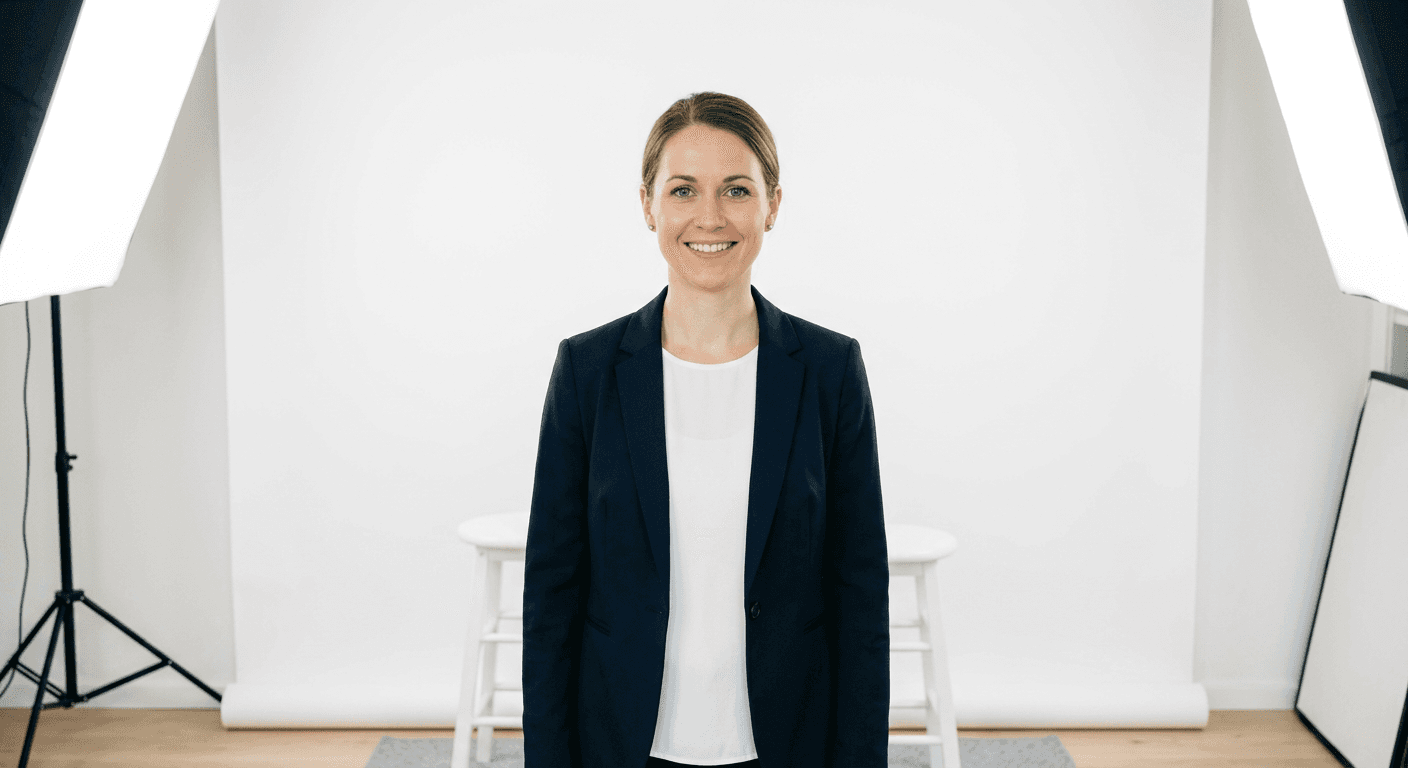
Submitting a passport application often feels daunting, particularly because of the strict biometric standards required for the portrait. When you choose to capture your image at home, the margin for error is slim. Using an online passport photo checker is a practical way to verify your image against official standards before you commit to printing or uploading your application.

Quick Summary
An online passport photo checker is a digital tool that analyzes your image to ensure it meets specific government requirements, such as head size, lighting, and background uniformity. These tools help prevent application delays by identifying common compliance issues like shadows, glare, or incorrect framing before you submit your paperwork.
- Automatically scans for biometric compliance.
- Ensures the head position and size match international standards.
- Validates background color and uniform lighting.
- Helps identify issues early to prevent application rejection.
Table of Contents
- Quick Summary
- Understanding Passport Online Photo Requirements
- How to Properly Use an Online Passport Photo Checker
- Common Pitfalls & Troubleshooting
- Frequently Asked Questions
- Recommended Reads
Understanding Passport Online Photo Requirements
Every government has precise rules for passport and visa photography. These rules are designed to facilitate facial recognition software and human verification processes. While specific dimensions may vary by country - for instance, the United States typically requires a 2x2 inch print, whereas many other nations adhere to the 35x45 mm format - the underlying principles of facial geometry remain constant. You must ensure that the subject is looking directly at the camera with a neutral expression, mouth closed, and eyes clearly visible.
Lighting is perhaps the most frequent point of failure in home-captured photos. Passport authorities mandate even lighting across the face, which means avoiding harsh shadows on either side of the face or behind the ears. Furthermore, the background must be plain, white, or off-white with no patterns or textures. Before using a passport photo checker online free, verify that the subject's hair is not covering their eyes and that there are no obstructions like glasses or hats, which are generally prohibited in modern travel documents.
How to Properly Use an Online Passport Photo Checker
Using an online passport photo upload tool effectively requires a clean source image. Follow these steps to maximize your chances of a successful verification:
- Capture your photo in a well-lit area, ideally facing a window to take advantage of soft, natural light. Ensure there are no secondary light sources that could create cross-shadows.
- Position the camera at eye level with the subject. Avoid tilting the camera up or down, as this distorts the facial proportions required for biometric software.
- Access a reliable passport photo tester and upload your file. Ensure the file format is compatible, typically JPEG or PNG.
- Adjust the crop according to the guidelines provided by the tool. Most checkers will show a template overlay to help you align the top of the head and the chin.
- Review the analysis results provided by the platform. If the tool flags an issue, such as uneven lighting or a non-compliant background, do not attempt to bypass it with editing software; it is better to retake the photo under better conditions.
- Download or process the final, validated image to meet the specific resolution requirements, often set at 300 DPI for high-quality printing.
Pro Tip: When photographing infants or small children, place them on a plain white sheet on the floor while you stand above them to capture the image. This is often easier than trying to keep a baby seated upright against a wall and ensures a uniform background.
Common Pitfalls & Troubleshooting
One of the most common issues users face is the presence of reflections or glare. If you are wearing glasses - though it is highly recommended to remove them - they often cause flashes of light that obscure the eyes. Similarly, many home users struggle with digital noise or pixelation. Always shoot in high resolution and avoid using digital zoom, which degrades the image quality required by passport agencies.
If the system rejects your upload, check your file size. Passport offices often have a maximum limit for online submissions. If you are unsure whether your photo meets the grade, consult United States Baby Passport Photo Guide to see how professionals approach consistent, compliant results. Remember that even if a digital checker approves the photo, human reviewers at the passport office maintain the final authority. Avoid heavy filters or background manipulation, as these are easily detectable and will lead to an automatic rejection of your application.
Frequently Asked Questions
Do online passport photo checkers guarantee acceptance?
No tool can guarantee 100% acceptance, as the final decision rests with the passport agency's human reviewers. However, these tools significantly reduce the risk of rejection by catching common errors such as improper framing or poor lighting before you submit.
Can I use a selfie for a passport photo?
While technically possible, selfies are rarely ideal because the focal length of a front-facing camera often distorts facial features. It is best to have someone else take the photo from a distance of at least 5 feet to maintain natural proportions.
What if my photo is rejected after I checked it?
If a photo is rejected, review the specific feedback provided by the passport office. It is often related to shadows, resolution, or facial expression. Retake the photo, focusing on the specific error cited, rather than trying to edit the rejected image.
Is it safe to upload my photo to these sites?
Reputable sites that offer photo checking tools have strict data handling practices. Always review the site's privacy policy to understand how your biometric data is stored and when it is deleted after processing.