How to Validate Your Passport Photo Online
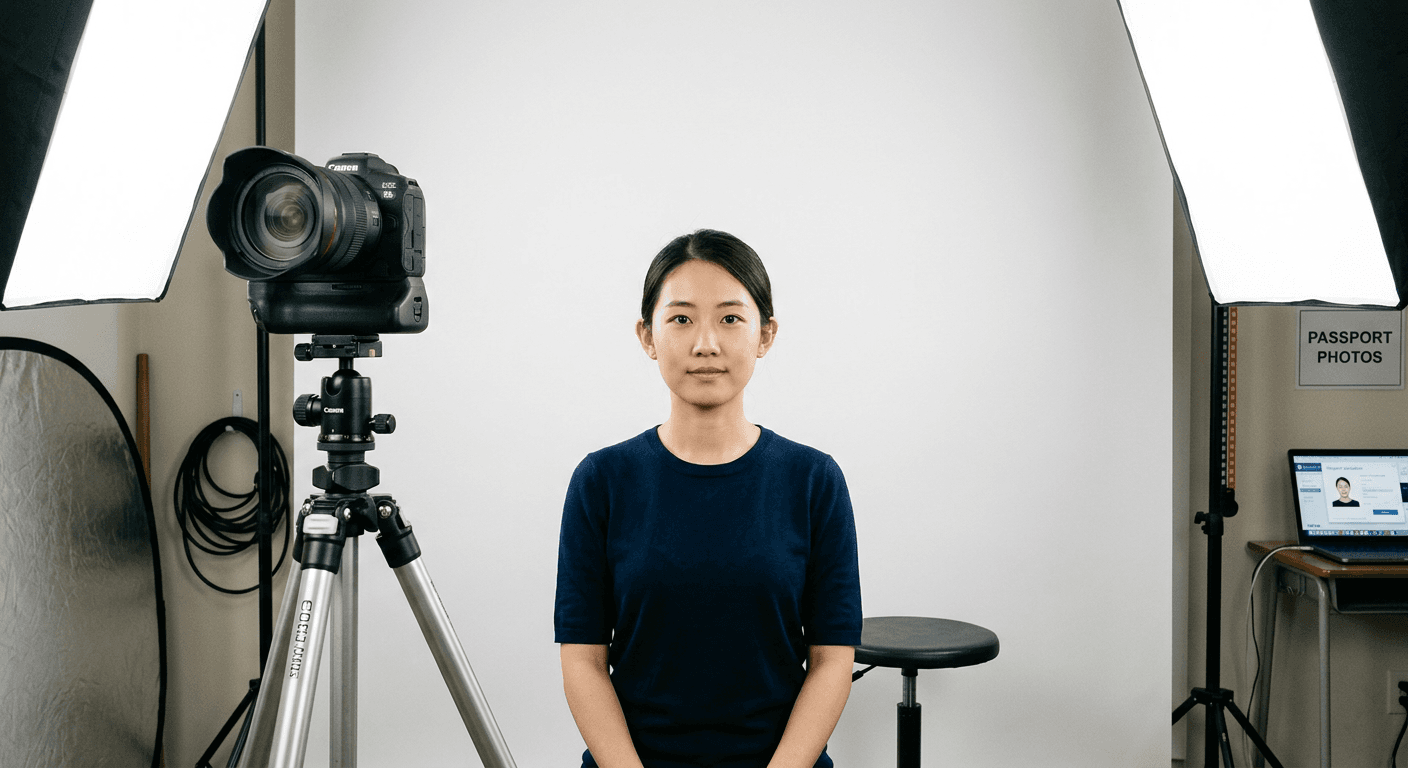
Capturing the perfect image for official documents often leads to frustration, especially when applications are rejected due to technical non-compliance. Learning how to check passport photo online is a critical skill for ensuring your submission meets the stringent government standards required for international travel. By utilizing digital verification tools, applicants can identify common errors like improper lighting, incorrect head positioning, or poor background contrast long before submitting their documents to the authorities.
Quick Summary
An online passport photo checker is a digital tool that analyzes uploaded images against strict biometric and technical standards defined by passport issuing agencies. These tools identify compliance issues such as head size, background uniformity, and shadow distribution, significantly reducing the likelihood of application rejection for document processing errors.
- Ensures compliance with ICAO standards.
- Automates detection of lighting and pose errors.
- Saves time by preventing document resubmission.
- Verifies specific cropping and resolution requirements.
Table of Contents
- Quick Summary
- Understanding Passport Online Photo Requirements
- How to Check Passport Photo Online Effectively
- Common Pitfalls and Troubleshooting
- Frequently Asked Questions
- Recommended Reads

Understanding Passport Online Photo Requirements
Passport agencies worldwide enforce rigorous standards to ensure the integrity of facial recognition systems. Whether you are preparing a US baby passport photo or an adult portrait, the core requirements remain remarkably consistent: neutral facial expressions, eyes open, and no head coverings (unless for documented religious reasons). The background must be plain, typically white or off-white, and completely free of texture, shadows, or other people.
Technical specifications are just as vital as facial geometry. Most governments mandate a specific resolution, typically measured in pixels, and a precise aspect ratio. If an image is too small or too compressed, the authorities will reject it as "pixelated" or "low quality." Mastering these passport online photo requirements before you even attempt to upload your image is the most effective way to guarantee your application process moves forward without delay.
How to Check Passport Photo Online Effectively
-
Select a reliable validation platform: Choose a reputable passport photo checker online free service that specializes in international document compliance. Avoid generic image editing software that does not account for specific country-based biometric measurements.
-
Upload your high-resolution source file: Ensure your photo is well-lit and clear. Avoid using filters or post-processing enhancements that alter your natural features, as this is a primary cause for rejection at the border.
-
Run the automated diagnostic: Allow the online passport photo checker to scan for critical parameters including distance from chin to crown, shoulder alignment, and background light consistency.
-
Review compliance report: Read the feedback carefully. If the tool flags your photo for "insufficient contrast" or "shadows on the face," do not attempt to "fix" it by over-editing. Retake the photo in a better-lit environment instead.
Pro Tip: If you are dealing with particularly tricky subjects, such as infants, look for specialized resources like a UK baby passport photo guide to understand how to stabilize the subject while maintaining a clean, compliant backdrop.
Common Pitfalls and Troubleshooting
One of the most frequent issues users encounter when they check passport photo online is the presence of "hot spots" or glares on the skin. These are often caused by using a camera flash in a room with white walls, creating backscatter that the software identifies as a non-uniform background. If your validation tool rejects the image based on background issues, try moving further away from the wall to soften the light.
Another common error is related to head positioning. Even a slight tilt of the head can cause the automated check to fail. Keep the head perfectly level, facing the camera directly, and ensure the hair is tucked back so the ears and the hairline remain visible. If you continue to receive errors, refer to the official contact support page of your chosen service to ensure you are not missing a specific region-locked requirement.
Frequently Asked Questions
1. Can I use a selfie for my passport photo? Technically yes, if it meets all the requirements, but it is strongly discouraged. Selfies often result in perspective distortion and incorrect lighting that will likely trigger a rejection by automated checking systems.
2. Is a free online checker 100% accurate? Most checkers provide an excellent baseline, but they are tools, not government agents. Always use them as a secondary verification step alongside official government guidelines.
3. Why was my photo rejected for 'shadows'? Shadows appear when there is a single, direct light source. To resolve this, use diffused, even lighting from the front, or stand in a room with natural ambient light coming through a window.
4. Do I need to wear specific clothing? Wear everyday clothing that contrasts with the background. Avoid white shirts if the background is white, and avoid uniforms or camouflage, as these are prohibited.